Wednesday, 29 July 2026

ArcGIS Server - Default Value for Z

In the ESRI documentation, the following is stated:

"In the Services module, click the name of the feature service for which you want to set default z-values. If you don't see your service in the list, it may be in a folder in the Site (root) directory." (link)

What is confusing is that there is no feature service at this location. It actually refers to the map service, which has the feature service enabled.

Therefore, the procedure is as follows:

Select the affected map service


Under "Capabilities", below the heading "Select and configure capabilities", click on the text "Feature Services"


The option to enable and set the default Z-value will then be displayed.

Wednesday, 1 July 2026

ArcGIS Pro – Deleting an Enterprise Geodatabase User in SQL Server

1. It is essential to first delete all tables associated with the user via ArcGIS Pro.

2. Only then should you delete the user in SQL Server.

If you delete the user directly in SQL Server, certain data entries may remain in the enterprise system tables; these entries will appear in the Catalog but cannot be deleted from there.


ArcGIS Pro does not provide a tool for deleting enterprise users in SQL Server. ESRI documentation also offers no instructions on the correct procedure for deleting a user in SQL Server. You may find advice online suggesting that the user be deleted directly in SQL Server—but doing so can lead to the problems mentioned above.

Friday, 19 June 2026

ArcGIS Pro – Clone a virtual Python environment for offline machines

In ArcGIS Pro you need to create a new virtual Python environment in order to install additional Python packages. How can you set up that virtual environment on a machine that has no Internet access?

The first surprise is that creating a new virtual environment requires Internet access at all — I had assumed the existing Python environment would simply be copied locally. When creating a new virtual environment, ArcGIS Pro attempts to download Python packages, presumably to install the most recent available versions.

The simplest solution seems to be: create the new virtual environment on a machine that has Internet access, install all additional packages you need there, then copy that environment folder to the offline machine.

Prerequisite: ArcGIS Pro must be the same version on both machines — in other words, the Python runtime must match. I don't know how exact that version match must be.

 Steps:

1) Create a new Python environment in ArcGIS Pro.

2) Install the additional packages you require.

3) The newly created environment is placed in the user's folder:

C:\Users\<username>\AppData\Local\ESRI\conda\envs

Zip the subfolder that corresponds to the environment you want, copy the zip file to the target (offline) machine, and extract it into the same folder there.


See also: Solved: How to clone the ArcGIS Pro 3 Python environment? - Esri Community

Thursday, 28 November 2024

Register as 'versioned' failed - ORA-02327 cannot create index on expression with data type ADT

I got the message "Register as 'versioned' failed - ORA-02327 cannot create index on expression with data type ADT" a while ago when I disabled versioning and tried to re-enable it.

As a workaround, I found that I had to delete the feature class mentioned in the error message and re-import it from a file geodatabase.

The problem is that with IMPORT you lose the globalid. But simply deleting and copying and pasting from the FGDB didn't solve the problem.

The message has now reappeared - displayed again but with a different Oracle schema. In the meantime we changed the Oracle version (from 12 to 19).

Deleting the feature classes (all part of a feature dataset) and re-importing them from FGDB didn't help.  When I copied the feature class from the dataset to a location outside of the dataset, I could sometimes register the feature class as versioned - but not always.

The solution was to use another computer to enable versioning. I don't know why this solved the problem - we have the same version of ArcGIS installed on both machines. The only difference I noticed is that the computer where versioning activation was successful did not have a language pack installed.

One more thing to mention: I first did exactly the same thing in our test database and didn't encounter any problems when re-enabling versioning.

Tuesday, 15 March 2022

ArcCatalog - deleted feature class reappears (Enterprise Geodatabase)

I tried to delete Oracle views in ArcCatalog but as soons as I reconnected the feature class reappeared in ArcCatalog.

It seems that if the view is invalid in Oracle ArcCatalog can't delete it. You need to modify the view so that it becomes valid again before deleting.

ArcMap/ArcCatalog 10.7.1, Oracle 11g

Geonis Interlis Export - ORA-24550: signal received: Unhandled exception: Code=e0434352 Flags=1 - revisted

Coming back to a post from 2019:

ORA-24550: signal received: Unhandled exception: Code=e0434352 Flags=1

The message doesnt help that much and hides the error message generated by the application. The message seems to be part of some kind of diagnostics which is enabled by default in some circumstances in Oracle client. It can be turned off by adding the following setting to sqlnet.ora

DIAG_SIGHANDLER_ENABLED=FALSE

After turning it off I got a more helpful error stack trace:

Unhandled Exception: GEONIS.Core.ErrorHandling.GTranslateableException: Could not open Table [VMG.VMG_V_VER_FLA_ART] ---> System.Runtime.InteropServices.COMException: DBMS-Tabelle nicht gefunden [ORA-24372: Ungültiges Objekt für Beschreibung]

   at ESRI.ArcGIS.Geodatabase.IFeatureWorkspace.OpenTable(String Name)

   ....


Tuesday, 21 September 2021

Hide single features in ArcMap

Here is a Python tool to hide selected features in ArcMap and to bring them back to screen. Useful if you need to create a screenshot / printout but want to hide certain features but not a whole layer. The tool applies a definition filter to "hide" selected features (across multiple layers) and removes the filters to display the features again. Filter condition is added to existing query.

Initial idea found on gis.stackexchange:

https://gis.stackexchange.com/questions/368848/creating-definition-query-from-selected-features-using-arcgis-pro

First the toolbox definition - save as PYT file:

 # -*- coding: utf-8 -*-  
 """  
 Created on Fri Feb 28 08:49:34 2020  
 """  
 import arcpy , m_main_layer  
 class Toolbox(object):  
   def __init__(self):  
     """Define the toolbox (the name of the toolbox is the name of the .pyt file)."""  
     self.label = "My Toolbox"  
     self.alias = ""  
     # List of tool classes associated with this toolbox  
     self.tools = [FeatureOff, FeatureOn]  
 class FeatureOff(object):  
   def __init__(self):  
     """Define the tool (tool name is the name of the class)."""  
     self.label = "Hide selected features"  
     self.description = "Hides selected features by applying a layer definition query"  
     self.canRunInBackground = False  
   def getParameterInfo(self):  
     """Define parameter definitions"""  
     return  
   def isLicensed(self):  
     """Set whether tool is licensed to execute."""  
     return True  
   def updateParameters(self, parameters):  
     """Modify the values and properties of parameters before internal  
     validation is performed. This method is called whenever a parameter  
     has been changed."""      
     return  
   def updateMessages(self, parameters):  
     """Modify the messages created by internal validation for each tool  
     parameter. This method is called after internal validation."""  
     return  
   def execute(self, parameters, messages):      
     reload(m_main_layer)       
     m_main_layer.main_off()  
     return  
 class FeatureOn(object):  
   def __init__(self):  
     """Define the tool (tool name is the name of the class)."""  
     self.label = "Display hidden features"  
     self.description = "displays hidden features by removing layer definition query"  
     self.canRunInBackground = False  
   def getParameterInfo(self):  
     """Define parameter definitions"""  
     return  
   def isLicensed(self):  
     """Set whether tool is licensed to execute."""  
     return True  
   def updateParameters(self, parameters):  
     """Modify the values and properties of parameters before internal  
     validation is performed. This method is called whenever a parameter  
     has been changed."""      
     return  
   def updateMessages(self, parameters):  
     """Modify the messages created by internal validation for each tool  
     parameter. This method is called after internal validation."""  
     return  
   def execute(self, parameters, messages):      
     reload(m_main_layer)       
     m_main_layer.main_on()  
     return            
Here the main Python script:
 # -*- coding: utf-8 -*-  
 """  
 Created on Fri Mar 20 09:11:37 2020  
 """  
 # -*- coding: utf-8 -*-  
 import arcpy  
 # mark start of query condition  
 # comments such as /* -- */ do not work with FGDB  
 # therefore we add a dummy condition as start marker  
 query_start_marker = "'A'='A'"  
 query_concat = " AND "  
 # max value might be different for each database system in use:  
 max_num_selected_features_per_layer = 999  
 def remove_filter_features(lyr):    
   if not lyr.isFeatureLayer:  
     return   
   desc = arcpy.Describe(lyr.name)      
   query = lyr.definitionQuery  
   start = query.find(query_start_marker)         
   if start >= 0:  
     query_front = query[:start]                 
     len_query_conact = len(query_concat)  
     if len(query_front) > len_query_conact and query_front[-len_query_conact:] == query_concat:  
       query_front = query_front[:-len_query_conact]              
     lyr.definitionQuery = query_front  
 def apply_filter_selected_features(lyr):    
   if not lyr.isFeatureLayer:  
     return                
   desc = arcpy.Describe(lyr.name)        
   if desc.FIDSet != '':                   
     fid_list = desc.FIDSet.split(";")  
     if len(fid_list) > max_num_selected_features_per_layer:  
       arcpy.AddMessage("Too many features selected ({0}), max: {1}.".format(len(fid_list),max_num_selected_features_per_layer))  
       return  
     query = ' {} NOT IN ({}) '.format(desc.OIDFieldName, ",".join(fid_list))      
     existing_query = lyr.definitionQuery  
     if existing_query:  
       query = existing_query + query_concat + query_start_marker+ ' AND ' + query  
     else:  
       query = query_start_marker + ' AND ' + query      
     lyr.definitionQuery = query      
     arcpy.SelectLayerByAttribute_management(lyr, "CLEAR_SELECTION")  
 def main_off():          
   arcpy.AddMessage("hide selected features....")  
   mxd = arcpy.mapping.MapDocument("CURRENT")       
   df = arcpy.mapping.ListDataFrames(mxd)[0]    
   for l in arcpy.mapping.ListLayers(df):  
     apply_filter_selected_features(l)  
   arcpy.AddMessage("hide selected features....finished")  
 def main_on():  
   arcpy.AddMessage("display hidden features....")  
   mxd = arcpy.mapping.MapDocument("CURRENT")       
   df = arcpy.mapping.ListDataFrames(mxd)[0]    
   for l in arcpy.mapping.ListLayers(df):  
     remove_filter_features(l)  
   arcpy.RefreshActiveView()            
   arcpy.AddMessage("display hidden features....finished")  

Example:
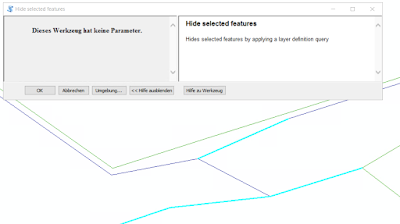
select features...
...hidden...


...bringing them back to screen...


Thursday, 19 December 2019

ArcGISServer / WebOffice - Reprojecting WMS service

It seems neither ArcGISServer nor VertiGIS WebOffice allow reprojecting a WMS service. However, that is what we needed as the WMS service provider from across the border did not want to add support for another coordinate system (epgs:2056) to its service. 

First option we looked into was MapProxy . It's relatively easy to install and to get a basic sample up and running. But it seems integration into IIS is not straightforward. I didn't bother to invest more time investigating this option any further. Fortunately, GeoServer also supports reprojecting WMS services - and surprisingly it was very easy to install and to get it to work. 

As we use VertiGIS WebOffice we have already Tomcat running. GeoServer installation is basically downloading the right file (Web-Archive), unzipping it and copying the resulting WAR file in to Tomcats WebApp folder and finally restarting Tomcat. Second step is to set up the WMS service - again straightforward as GeoServer comes with an easy to use and self-explaining web-interface.


Map project in epsg:2056, WMS service provided in epsg:25832 but reprojected by GeoServer

Monday, 21 October 2019

Geonis form with SQL

I added the following SQL statement to a Geonis form

 <edit title="Objekt" width="150">  
 <select>  
 select name_nummer as name from u_ele_trasseeabschnitt where globalid = [REF_FEAT_GID]  
 union all  
 select name_nummer as name from u_ele_strangabschnitt where globalid = [REF_FEAT_GID]  
 union all  
 select name || ', ' || u_tplnr from ele_tragwerk where globalid = [REF_FEAT_GID]  
 union all  
 select name || ', ' || u_tplnr from ele_schacht where globalid = [REF_FEAT_GID]  
 </select>  
 </edit>       

but I didn't get any results. Turns out that one needs to use the CONCAT command instead:

 <edit title="Objekt" width="150">  
 <select>  
 select name_nummer from u_ele_trasseeabschnitt where globalid = [REF_FEAT_GID]  
 union all  
 select name_nummer from u_ele_strangabschnitt where globalid = [REF_FEAT_GID]  
 union all  
 select concat(name, concat(', ', u_tplnr)) as name_nummer from ele_tragwerk where globalid = [REF_FEAT_GID]  
 union all  
 select concat(name, concat(', ', u_tplnr)) as name_nummer from ele_schacht where globalid = [REF_FEAT_GID]                                     
 </select>  
 </edit>                 

Geonis 2017.0

Monday, 7 October 2019

Geonis Interlis Export - ORA-24550: signal received: Unhandled exception: Code=e0434352 Flags=1

When exporting Interlis/LK Map FME just stopped working. Log file didn't contain any further information about the cause.

I had done an export successfully earlier with a project from the test database. Using the production database FME crashed.

The only difference I noticed was that the test project used an owner-connection to Oracle, the production project a editor-connection.

To get more information about the cause of the issue I ran the FME workbench in Windows command line - that's where I got the more detailed error message:


I don't really know what the error message is about. But when I run the export using the owner-connection it finishes successfully.

ArcMap 10.5.1, Geonis 2017.0, FME 2016, Oracle 11.2

Friday, 4 October 2019

GEONIS DB UPDATE - Umlauts not importet correctly

To import german umlauts (and other special characters) correctly into Oracle using Geonis Db Update the following two requirements have to be fullfilled:

(1) first line of XML file needs to define correct encoding:
<?xml version="1.0" encoding="utf-8"?>

(2) XML file encoding itself needs to be UTF-8 BOM


Geonis 2017

Monday, 16 September 2019

ArcSDE Compress didn't compress

I inserted some data my means of SQL into a SDE managed table - or to be more precise into the SDE managed view belonging to the table.

I had done that before and so far it had worked without any issues. This time the compress operation didnt compress at least the table I had inserted rows. I ran compress a few times but to no avail. I restarted ArcGIS server but again it didnt change the result. Then I stopped ArcGIS server and killed all remaining connections to the Oracle schema and ran compress again. This time compress finished succesfully. Up to now I never had to kill all connections - so I assume there was something different this time.

ArcMap 10.5.1, Oracle 11.2.0.4

Monday, 15 July 2019

ArcMap – Oracle LISTAGG results in empty column


When using LISTAGG recently in view definition I had the problem that the column content based on LISTAGG was not shown in ArcMap / ArcCatalog.

The LISTAGG command usage was like that:

…
cast(listagg(nachname || '; ' || vorname || ' / ') within group(order by nachname) as nvarchar2(500)) as eigentuemer_name,
…

The columns (nachname, vorname) I concatenated were of data type “nvarchar2”. My initial view definition did not specify the data type for the column – I added it later but it did not solve my problem.

In SQL Developer the content of the column was shown right from the start. To check how other applications behave I connected to the view using Excel and tried to import the data into a sheet. When I did that I got an ORA-01401 inserted value too large for column message. After bit of research I found the following discussion on SO.

It was mentioned that there might be an issue with the length of the right hand side of the concatenation operator when usung NVARCHAR. I changed the view definition to VARCHAR2 and also increased the size. Afterwards I could import the data into Excel – but in ArcMap the column was still empty.

The second hint on the page – applying to_char conversion - finally solved the issue:

...
cast(listagg(to_char(nachname) || '; ' || to_char(vorname) , ' / ') within group(order by nachname) as varchar2(4000)) as eigentuemer_name,
...

It’s a bit strange – other columns in the view based on NVARCHAR2 are shown in ArcMap. Only in connection with LISTAGG the problem occurs.

ArcMap 10.5.1, Oracle 11.2.0.4.0

Friday, 16 February 2018

ArcMap slow?

ArcMap was extremly slow on my PC. Opening attribute tables, the Add Data dialog box, a model oder even a toolbox took ages (such as opening a toolbox > 30secs).
Now, I'm used to applying "Windows Classic" design in order to speed up things.
Turns out - since switching back to standard Windows 7 design ArcMap performance has improved significantly on my machine! Opening a larger model now only takes 1-2 secs (if at all)!

ArcMap 10.3, Windows 7

Wednesday, 17 January 2018

Excel Pivot table - manually reorder rows

Header > Sort Options > manually

Then:
- click into cell of row you want to move
- open context menu > "move"


Excel 2013

Thursday, 21 December 2017

ArcPy - find layers with joins

Here is a brute force script for finding layers with JOINs. As there doesn't seem to be a "hasJoin" property I just use arcpy.RemoveJoin_management which throws an exception if there is no join. This is script is only usefull for once off checks.


ArcMap 10.3


 # find (all) joins in MXD by removing them!  
 # usage: copy MXD and run script or run script and don't save MXD as all JOINS will be removed  
 # result will be a list of all layers where JOIN has been removed succesfully  
 import arcpy  
 mxd = arcpy.mapping.MapDocument("CURRENT")  
 layers = arcpy.mapping.ListLayers(mxd)  
 allJoins = ''  
 for layer in layers:  
   try:  
     arcpy.RemoveJoin_management (layer.name)  
     print("join removed: "+layer.name)  
     allJoins += '\n'+layer.name  
   # no join throws exception  
   except Exception as err:  
     print(err.args[0])  
 print(allJoins)  

Wednesday, 20 December 2017

ArcPy - MoveLayer fails with "assert refe_c is not None, 'Did not find reference layer.'"

Just wanted to copy and paste all layers into new MXD file. Unfortunately order of layers in TOC is not retained. So I googled for script and found one - but MoveLayer failed with error message "assert refe_c is not None, 'Did not find reference layer.'". The post did not mention anything like that.

Solution in my case : for the reference layer a fresh reference is required. 

old: refLayer=moveLayer
new: refLayer = arcpy.mapping.ListLayers(mxdT, moveLayer.name, dfT)[0]  

ArcMap 10.3.1


Here is the script:


 # -*- coding: utf-8 -*-  
 # source code initially taken from: https://community.esri.com/thread/28042  
 # assumption : no layer groups  
 # my use case : copy and paste all layers into new MXD, layer order is not retained - run script to restore layer order  
 import arcpy  
 mxd_source = r"C:\temp\source1.mxd"  
 mxd_target = r"C:\temp\target.mxd"  
 mxdT = arcpy.mapping.MapDocument(mxd_target)  
 # assumption: only one DF  
 dfT = arcpy.mapping.ListDataFrames(mxdT, "")[0]  
 mxdS = arcpy.mapping.MapDocument(mxd_source)  
 # assumption: only one DF  
 dfS = arcpy.mapping.ListDataFrames(mxdS, "")[0]  
 #initialize refLayer with layer  
 refLayer = arcpy.mapping.ListLayers(mxdT,"",dfT)[0]  
 for layerSource in arcpy.mapping.ListLayers(mxdS,"",dfS):    
   c=layerSource.longName  
   d=layerSource.description  
   sourceLayer=c+d  
   print("processing layer in source: '" + sourceLayer+"'.")    
   for layerTarget in arcpy.mapping.ListLayers(mxdT,"",dfT):  
    a=layerTarget.longName  
    b=layerTarget.description  
    moveLayer= a+b     
    if sourceLayer==moveLayer:  
      print("moving layer:'"+moveLayer+"', reference layer: '"+refLayer.name+"'.")  
      moveLayer=layerTarget            
      arcpy.mapping.MoveLayer(dfT,refLayer,moveLayer, "After")       
      #get fresh layer reference - otherwise MoveLayer will fail next time:  
      refLayer = arcpy.mapping.ListLayers(mxdT, moveLayer.name, dfT)[0]             
      break  
 mxdT.save()  
 #arcpy.RefreshActiveView()  
 #arcpy.RefreshTOC()       

Thursday, 19 October 2017

Job available

We are currently looking for a GIS specialist. The job description can be found here:

https://jobs.winterthur.ch/?yid=1755&sid=6k9afr49m011jjoe5rsjb72802

Please apply if you are interested.


Tuesday, 12 September 2017

Warning: An exception occurred in FDO component.

I got the following warning in MapGuide log file:

Warning: An exception occurred in FDO component.
        Zeichenfolge ist kein gültiger Ausdruck. 
 StackTrace:
  - MgStylizationUtil.ExceptionTrap() line 231 file SE_ExpressionBase.cpp

 
The message means "string is invalid expression".

In my case it seems the issue is related to text label style. The text label was originally published using MTEXT as style. Later on - due to a bug in MapGuide - I changed the text style to TEXT. But since I changed TEXT back to MTEXT the message doesn't appear in the log files anymore. 


Autodesk Infrastructure MapServer 2017

Thursday, 17 August 2017

File based Industry Model - how to modify views

When you use a file based Map Industry Model (IM) you might want to extend the data model and add attributes to one of the tables. If you are not familiar with databases, SQL and the concept of "table" and "view" this blog post will explain some basic concepts behind Map IMs and also show how you can add attributes to both tables and views. 

Tables and views 

AutoCAD Map comes with ready-to-use Industry Models. These IMs contain many tables, views, forms, labels and so on. Tables actually store data, views only provide a "view" on one or more tables and do not contain any data. Look here for more details: 

https://en.wikipedia.org/wiki/View_(SQL) 

Nothing prevents you from storing all your data in just one big table. But there are disadvantages to it and therefore data is usually split across multiple tables. Here is more information on why: 

https://en.wikipedia.org/wiki/Database_normalization 

When you have data across multiple tables you need to combine data in order to get the information you need - "views" are one way to achieve that. 

In Autodesk Infrastructure Administrator (AIA) tables and views appear the same at first glance. But if the Data Model was set up properly a view will have a display name ("caption") containing the word "view". Whenever you create a new table or attribute in AIA you need to enter a name but you can also enter a "caption" - a more descriptive name:

Feature class name and caption 
The caption will be used in AIA and Map, not the name of the object: 

 
List of all tables/views in "Point" - column "Feature Class" shows captions

Whenever you need to work directly in the database you first need to find out the name of the table/view. The names are shown in AIA as well - just look below the tree view where the caption and the name of the table/view (in brackets) are displayed: 

For a selected item the name and caption is shown in the status bar below the Data model tree view.


You will also notice another convention - in a databases a view name often contains "_v_" to indicate that it is a view and not a table. 

Example: in WA Industry Model there is a table called: "Fitting" (see screenshot above):

"Fitting" - display name for table "WA_FITTING" shown in AIA and Map 
"WA_FITTING" - name of the table in the database (WA indicating that the table belongs to the WA Industry Model) 
"Fitting View" - display name for view "WA_V_FITTING" shown in AIA and Map 
"WA_V_FITTING" - name of the view in the database  

In AIA you can easily add attributes to a table. If you add an attribute you usually want to have the attribute shown on your form as well in order to be able to enter data. So you need to open the form for the table in AIA Form Designer and add the new attribute there as well. In case the new attribute is also needed to style features in your drawing you need to incorporate it in your layer definition. 

But layers in Display Models often are based on views and not on tables. In this case adding an attribute to a table is not sufficient - the attribute also needs to be added to the view in question. Now, here is a limitation of AIA - you cannot create or modify an existing view the same way you can create or modify a table. For a view the context menu function "Add attribute" is not available: 

 
For a view "Add Attribute" is not available

In order to do that you need to use a tool called "SQL Sheet" which comes with AIA - we will come to that in a second.

How do you know whether a layer in Display Model is based on a table or on view? 
After generating graphics using the Display Model in question you can check either by hovering the mouse on top of the layer name in Display Manager - a flyout will show the layer's data source (table/view name, not the caption) - 


Layer data source name is shown in fly out for layer in Display Manager

or open the StyleEditor for the layer and the table/view name is displayed there as well on the top: 
Layer data source name is shown in Style Editor

 If the name contains "_V_" you can be quite certain its a view.  

By the way - the layer name as shown in Display Manager is often different from the table/view names the layer is based on. You have three different names by now: 
- the actual table/view name as used in the database 
- the caption for a table/view as shown in AIA and Map 
- the layer name in DisplayManager  
All point to the same thing - a certain table or view - but might have (slightly) different names. 


Modify an existing view 


Example - add a new attribute to the Fitting table and also use the attribute when styling the layer in Map. As the layer in Map is based on a view (see screenshot above) we need to modify it as well. 

1) add new attribute to table 


2) in Form Designer drag and drop attribute to the form 


3) save drawing (important!) 

4) open SQL Sheet (File menu, choose "SQL Sheet"),  


5) choose "SqLite"  and your drawing file (containing the file based IM, drawing should not be opened in Map at the same time) 


4) in top right corner choose "Views" to get a list of all views in your current IM 


5) select the view to modify - WA_V_FITTING -  on the right hand side below the list you will see the attributes of the view 

6) right-click on view name and choose "Modify View" - in the left side panel the view definition will be shown 


CREATE VIEW WA_V_FITTING AS select g.GEOM,g.ORIENTATION, g.FID, a.NAME_NUMBER 
from WA_POINT g, WA_FITTING a 
where g.FID_ATTR = a.FID 

As you can see the view takes data from two tables - WA_POINT and WA_FITTING. 
WA_POINT stores the geometry of a feature, WA_FITING stores all attributes which are useful for fittings. We added a new attribute to WA_FITTING earlier. This attribute needs to be added to the view as well. 

You can also notice a letter after each table name (g and a) - they are called "alias" in order to shorten then whole expression. Without alias (which could be a word not just a single letter) the statement would read like this: 

CREATE VIEW WA_V_FITTING AS select WA_POINT.GEOM,WA_POINT.ORIENTATION, WA_POINT.FID, WA_FITTING.NAME_NUMBER 
from WA_POINT, WA_FITTING 
where WA_POINT.FID_ATTR = WA_FITTING.FID 

The alias or table name is given to indicate from which table a certain attribute comes from (required in cases where the same attribute name is used in more than one table). 

Now you only need to add your attribute name (including the alias) - don't forget to add an additional comma between the last attribute and the new attribute: 

CREATE VIEW WA_V_FITTING AS select g.GEOM,g.ORIENTATION, g.FID, a.NAME_NUMBER 
, a.MA_SIZE 
from WA_POINT g, WA_FITTING a 
where g.FID_ATTR = a.FID 

Attribute name needs to be upper cases. 

Click on the green triangle to execute the statement - you will get the following error message: 

... 
SQL execution error number 0, table WA_V_FITTING already exists 
... 

We cannot overwrite a view - we have to delete the old one first and re-create it afterwards. Add the following line before the CREATE VIEW statement: 

DROP VIEW WA_V_FITTING; 
CREATE VIEW WA_V_FITTING AS select g.GEOM,g.ORIENTATION, g.FID, a.NAME_NUMBER 
, a.MA_SIZE 
from WA_POINT g, WA_FITTING a 
where g.FID_ATTR = a.FID 

Execute the query again, result should be:

SQL> DROP VIEW WA_V_FITTING 
Command executed (0). 


SQL> CREATE VIEW WA_V_FITTING AS select g.GEOM,g.ORIENTATION, g.FID, a.NAME_NUMBER 
, a.MA_SIZE 
from WA_POINT g, WA_FITTING a 
where g.FID_ATTR = a.FID 
Command executed (0). 


If you receive an error message like this: 

SQL execution error number 0, no such column: a.MA_SIZE 
 'CREATE VIEW WA_V_FITTING AS select g.GEOM,g.ORIENTATION, g.FID, a.NAME_NUMBER 
, a.MA_SIZE 

Did you save your drawing after adding the attribute to your table?  If you haven't saved the drawing SQLSheet doesn't seem to "see" the new attribute. 

7. close SQL Sheet 

8. Close AIA 

9. open AIA and reload your drawing, check the view in Data Model tree view - the attribute is now available in the view as well: 


Before modifying your data base with SQL Sheet - back up your drawing file.